


A must-have for anyone coming to Mac from Windows. SADFinder is the kind of app you didn't know you needed until you've tried it, and it's full of thoughtful little features I wish Mac had by default.
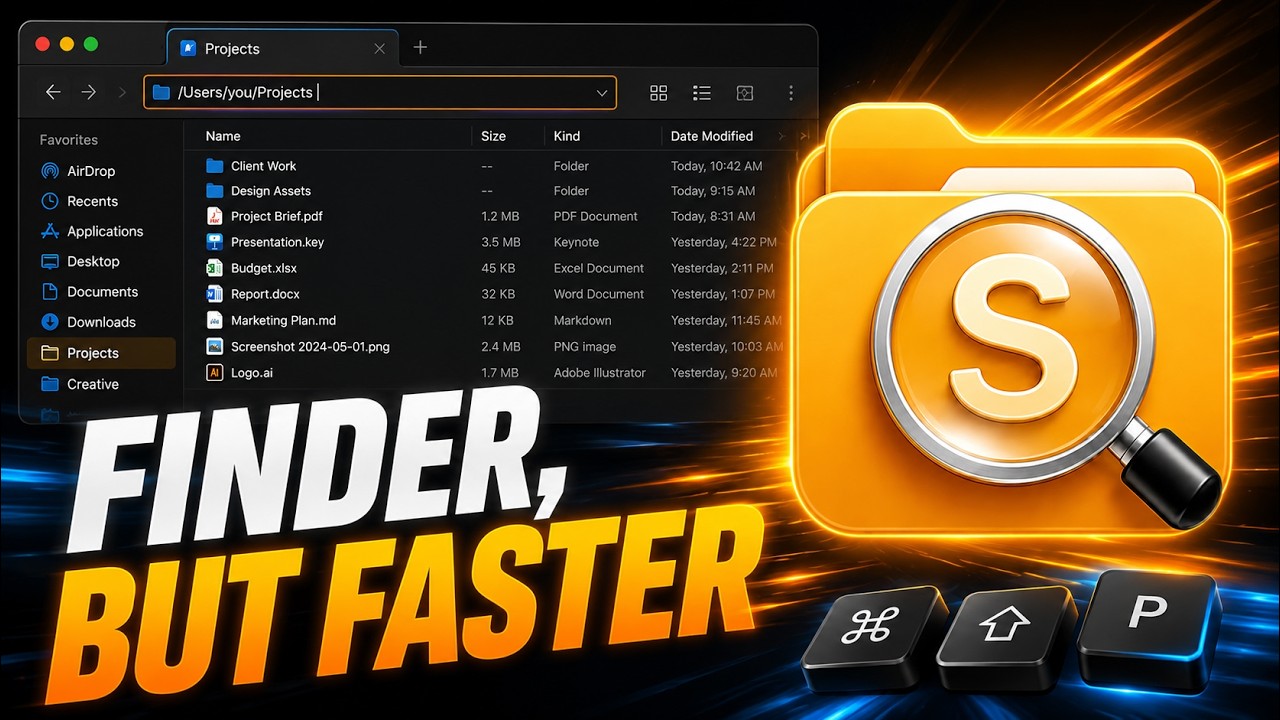
Work faster with a better Finder that snaps windows with one keystroke.
The Finder macOS should have shipped. $5/month, $29/year, or $49 once — for up to 3 Macs.
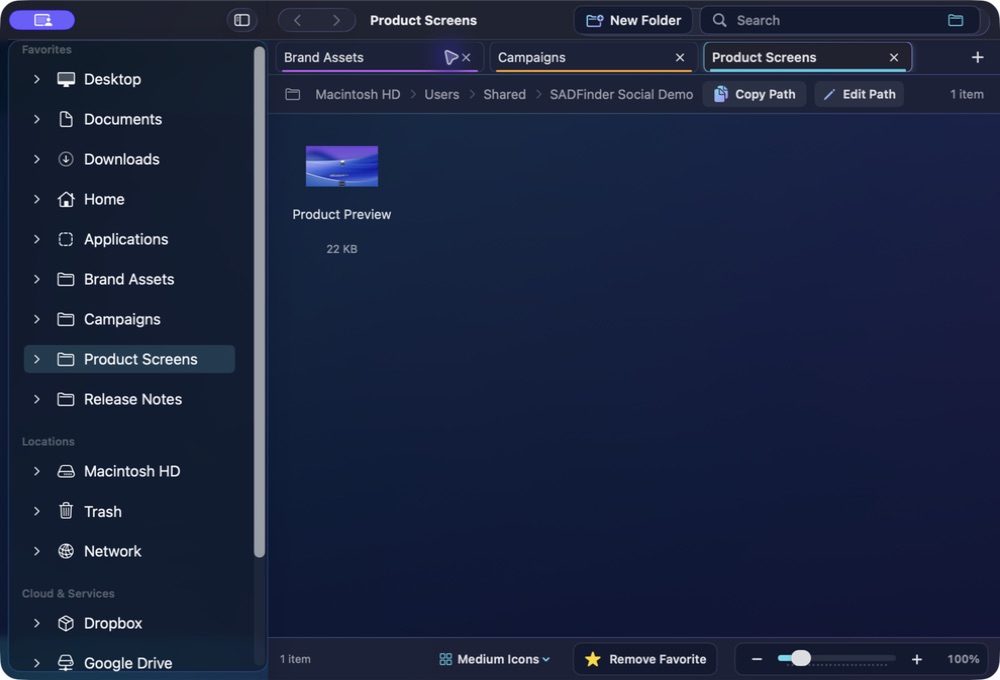
What this demo shows, 19 short scenes: cut and paste moves files; Delete sends files to Trash and ⌘Z brings them back; Enter opens; ⌘T opens a new tab; the Dialog Picker puts a full SADFinder window beside any app's Open dialog and a file dragged onto its drop zone is handed to the app; Control + numpad digits snap the window; ⌘R renames; ⌘⇧N makes a folder; ⌘D duplicates; ⌥↑ goes to the parent folder; ⌘L edits the path bar; ⌘⇧F filters; Space is Quick Look; ⌘⌥C copies the path; ⌘⇧T reopens a closed tab; tab colours are chosen in the Settings window; themes are chosen in the Settings window and every window restyles at once; ⌘ + scroll changes the view; ⌘= and ⌘− change the text size.
+ Live wallpapers −50% for SADFinder members → 40+ live wallpapersDocuments
Documents
Contracts3 items
Invoices3 items
contract-acme96 KB
cv140 KB
invoice-2026-0988 KB
notes3 KB
100%
→
Cut & paste
Cut & paste (Command + X, then Command + V)
See what SADFinder can do.
It plays on its own. Tap any chip to jump straight to that one.
★Remove Favorite −+100%
Open
The walkthrough
Everything in SADFinder. One step at a time.
01
Navigation
Enter goes in. Delete deletes.
Select a folder, hit Enter — you're inside it. Select a file, hit Delete (⌫) — it's in the Trash, no ⌘ chord needed. ⌥↑ takes you one level up.
keys⏎⌫
assets
components⏎ open
index.html
README.md
02
File operations
Press Delete — it goes to the Trash.
You press the Delete key and the file goes straight to the Trash. Exactly what that key should always have done.
notes.md
shot.png
old.zip
drafts
demo.m4a
backup
03
Navigation
A path bar you can type into.
Need to paste a location? Click the path bar, type any path, press Enter, and you're there.
04
Browsing
Tabs — cut here, paste there.
Cmd-T opens a new tab. Select files, Cmd-X to cut, switch tab and paste — they actually move. Cmd-N gives you a whole new window.
keys⌘T⌘X⌘N
Projects Downloads Photos
hero-final.png⌘X cut
logo.svg
exports
05
Editing
Rename with Cmd-R.
Renaming is one shortcut, and you edit the name right where it sits in the list.
keys⌘R
invoice-final-FINAL.pdf
invoice-2026-07⌘R
receipt.pdf
06
Search
Search inside the folder you're in.
A quick filter scoped to exactly where you are — instant, no Spotlight detour.
keys⌘⇧F
hero-final.png
hero-mobile.png
notes.md
readme.txt
07
Window management
Snap windows. Halves, quarters, full screen.
Window management is built in — send the window anywhere from the keyboard. No Rectangle, no Magnet.
keys⌃⇧←⌃⇧→
SADFinderFileEditViewWindow
08
The Desktop
Real control over your Desktop.
Your Desktop sits in the sidebar like any other folder. When it's your front view, Delete clears real desktop files — even with every other window minimized.
Desktop
scan.pdf
screenshot 12.png
To sort
cover.jpg
old.zip
09
Make it yours
Favorites, sizing, and the view.
Favorite the folders you live in. Hold Cmd and scroll to flip through six view modes, from a compact list to huge icons.
keys⌘+ scroll
ListCompactDetailsIconsGalleryColumns
Projects
Clients
Downloads
10
Never stuck
And a cheat sheet, built right in.
There's a lot in here. Whenever you want to refresh your memory, the full shortcut cheat sheet is one click away — inside the app.
⌘R Rename in place
⌘L Path bar type a path
⌘⇧F Filter this folder
Space Quick Look preview
⌘D Duplicate selection
Themes
Make it readable. Make it yours.
A closer look at ten of SADFinder's seventeen built-in themes, including six premium styles with richer glass, colour and contrast.
SADFinder theme preview
Mac switchers get it immediately.
When I switched from Windows to Mac, Finder just didn't click for me — literally. No clicking into folders, no backspace to go back, all the little shortcuts I took for granted were gone. SADFinder fixed that. Now navigating feels fast, natural, and kind of satisfying.
I worked in DOS and Windows for decades, then became a zealous Mac convert. The one thing that bugged me about macOS is Finder — it just doesn't act the way I think it should. SADFinder has made my Mac-centered life MUCH better.
Ken Granger
Pricing
Simple pricing. Same app on 3 Macs.
Monthly
$5/ month
Maximum flexibility. Cancel anytime.
Start free 7-day trial Yearly Best value
$29 / year · $2.42/mo
$2.42/month, billed yearly — 52% less than monthly.
Start free 7-day trial Lifetime Updates included
$49once
Pay once. Lifetime access with every future update included.
Buy once — $49Klarna. At checkout for eligible Lifetime purchases only.
7 days free, no card. Then $5/month, $29/year, or $49 once. · 14-day refund on first purchase.