Changelog

0.1.33

More personal.
More readable.

Tabs are easier to tell apart, visual preferences live in one clear place, and every label can be made easier to read. Keyboard control, performance, and setup received a careful pass too.

New Improved Fixed
New 01

Three ways to color your tabs.

When several tabs are open, each folder can have its own color. Choose a subtle dot, a precise underline, a full background tint, or turn tab colors off in Preferences → Appearance.

01
Colored dotA compact color cue that keeps every tab surface quiet.
Three SADFinder tabs open for Brand Assets, Campaigns, and Product Screens, each marked with a different colored dot
02
UnderlineA clear color line gives each open location its own identity.
Three SADFinder tabs open for Brand Assets, Campaigns, and Product Screens, each marked with a different colored underline
03
Background tintThe strongest distinction, with the active tab tinted edge to edge.
Three SADFinder tabs open for Brand Assets, Campaigns, and Product Screens, each using a different background tint
New 02

Appearance, all in one place.

The new Preferences → Appearance panel makes themes, tab colors, and readability options easier to find and understand.

New 17 built-in looks

Six new premium themes.

Richer glass, color, contrast, and two quieter light options.

  • Aurora Glass
  • Graphite Neon
  • Nordic Frost
  • Sunset Mesh
  • Aero
  • Minimal Paper
SADFinder Preferences open to Appearance, showing six premium themes above the standard themes
Improved 85–200% content scale

Large Text means every label.

File names, sidebar items, tabs, path controls, buttons, and status labels are easier to read. Large Text is available in light and dark.

  • All interface labels scale together
  • Light and dark variants
  • Content scaling up to 200%
SADFinder in Large Text mode with larger labels in the sidebar, tabs, toolbar, path bar, file grid, and status bar
New 03

Useful every day.

Small-looking additions that remove repeated steps from file work.

New

Connect to Server

Find shared folders and servers on your local network, then reconnect quickly.

New

Move to Folder

Choose where files go, follow progress, and undo the move if needed.

Improved

Remember folder views

Each folder remembers its sorting, grouping, and folder-size setting.

New

Shortcut guide

Press ? to see the complete SADFinder keyboard-shortcut guide.

Refinements

Faster, clearer, more reliable.

7 changes
  • Fixed

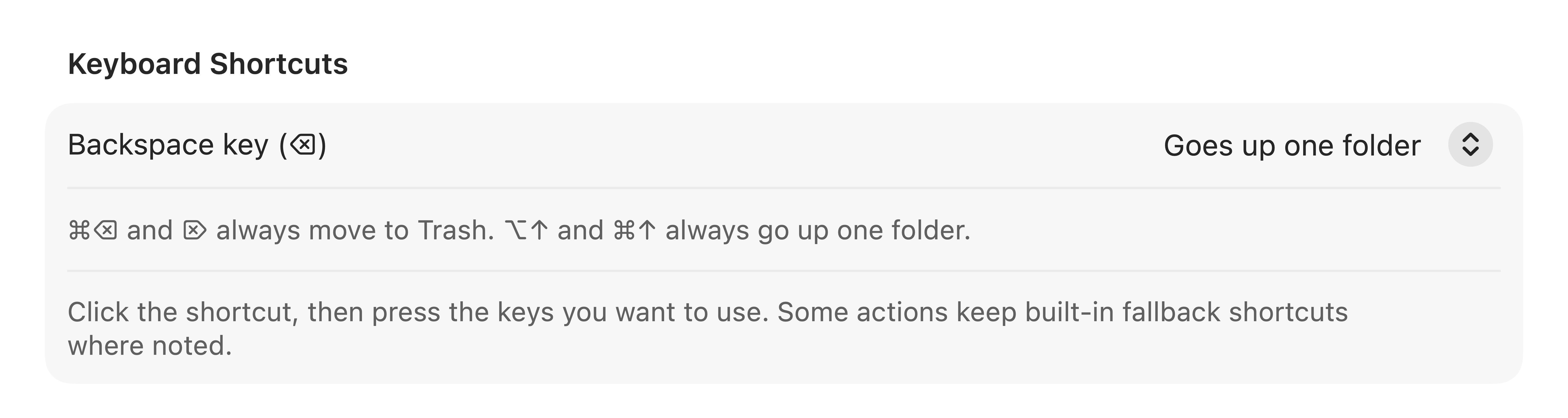
    Backspace now deletes characters while you rename an item instead of navigating to the parent folder.

  • Fixed

    ⌃⌘T opens the current folder in Terminal, matching the shortcut guide.

  • Improved

    Current Folder search now explains that subfolders are included.

  • Improved

    Folders with thousands of files open and switch noticeably faster in List view.

  • Fixed

    Opening a file no longer freezes SADFinder while a slow application launches.

  • Improved

    Full Disk Access setup adds a Relaunch action and warns when SADFinder runs from the downloaded disk image.

  • Improved

    Crash reporting no longer mistakes open menus and save dialogs for a frozen app.

0.1.29

Reliable cloud libraries.

OneDrive now understands Personal, Business, SharePoint, and Teams libraries, while cloud permissions and placeholder files fail more clearly.

Improved

Cloud connections, at a glance.

Google Drive

Approval pending

The integration is ready and waiting for Google approval before everyone can connect.

OneDrive

Available

Personal, work, school, SharePoint, and Teams document libraries are supported.

Dropbox

Available

Share links, keep files offline, view details, and restore older versions.

SADFinder Cloud Accounts preferences showing Dropbox, Google Drive, and OneDrive connections

Changes in version 0.1.29

  • Improved

    OneDrive roots are identified as Personal, Business, SharePoint, or Teams libraries.

  • Fixed

    SharePoint and Teams libraries now map to their exact Microsoft Graph drive instead of the account default.

  • Fixed

    Online-only OneDrive placeholders remain visible, with actionable Files & Folders permission guidance and retry.

  • Improved

    Cloud roots refresh when provider state changes, with clearer consent and library-mapping guidance.

  • Improved

    Large Text is available in light and dark across the 11 themes included in this release, with content scaling up to 200%.

  • Improved

    Window snapping is more reliable, including layouts beside the Dock.

  • Improved

    Cloud checks, icons, and saved passwords no longer slow down the app.

  • Fixed

    Fixed crashes while dragging files, connecting to servers, and sending feedback.

  • Improved

    Desktop mode can start without restarting Finder and gives clearer help when access is blocked.

0.1.4

Dropbox, search, and reliability.

Cloud file actions arrived, search gained context, and several failure paths became safer.

  • New

    Dropbox actions in the right-click menu: copy or create a share link, keep a file offline, open it on Dropbox.com, see details, and restore older versions.

  • Improved

    Search results show their folder location, and every tab remembers its own search scope.

  • Fixed

    Right-clicking a file in List view reliably opens the file menu instead of the background menu.

  • Fixed

    A failed Keychain write no longer removes the previous license, validation cache, or Dropbox token.

  • Fixed

    Desktop permanent delete reports partial failures instead of presenting the operation as fully successful.

  • Fixed

    Default folder-handler setup records success only after Launch Services accepts a folder type.

  • Improved

    Feedback privacy scrubbing redacts bare user-folder paths, and oversized feedback or license requests are rejected safely.

0.1.0

The first public build.

The keyboard-first foundation: tabs, direct paths, Desktop control, file tools, and window snapping.

  • New

    Tabs with reopen-last-closed and separate navigation history for each window.

  • New

    Editable path bar: press ⌘L, type a folder path, and press Enter to go there.

  • New

    Quick Filter narrows the current folder with ⌘⇧F.

  • New

    Windows-style keys: Enter opens, Backspace goes up, Delete moves to Trash, and ⌘R renames.

  • New

    Rectangle-style keyboard snapping for any frontmost app window.

  • New

    Real Desktop control, including moving files off the Desktop while windows are minimized.

  • New

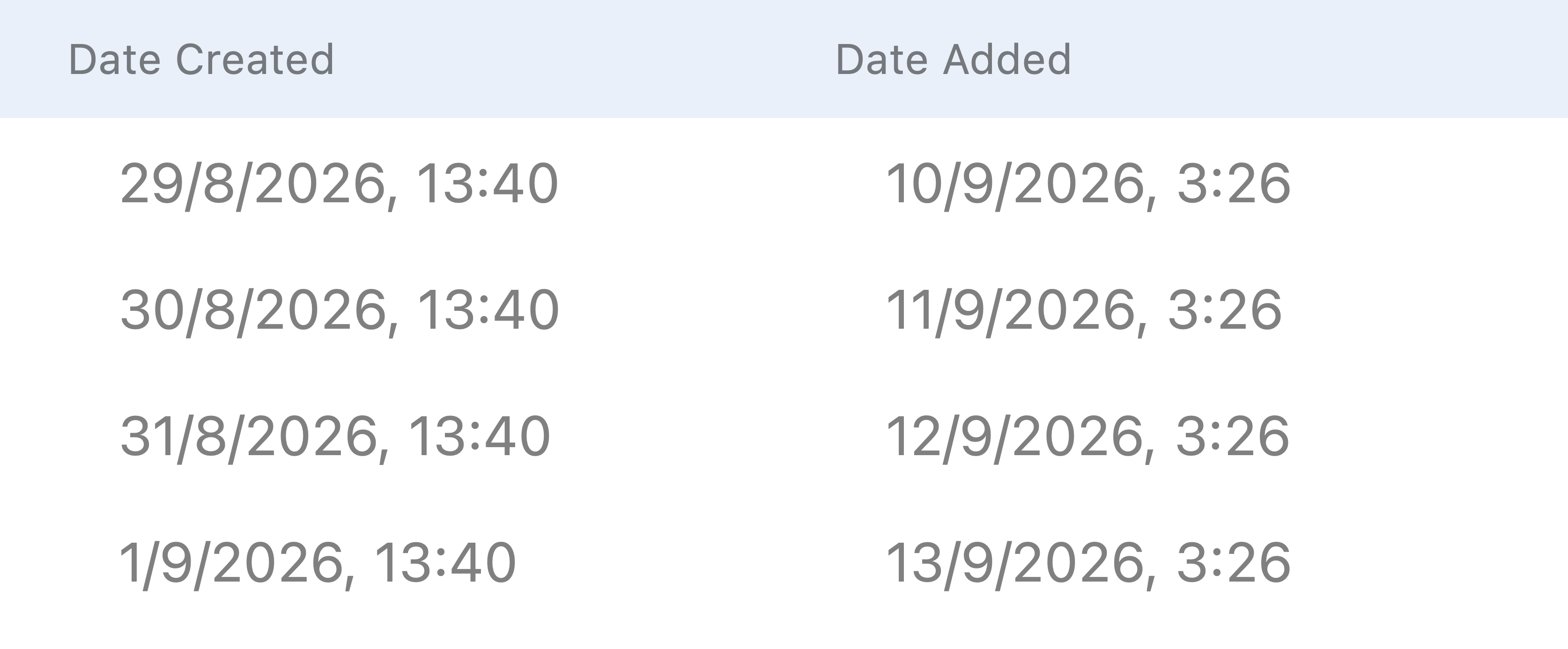
    Get Info with kind, exact byte size, owner, and timestamps.

  • New

    ZIP compression and extraction from the right-click menu.

  • New

    Open folders in Terminal and calculate cached folder sizes.

  • New

    Cloud locations grouped together in the sidebar.